¶ Degrees of Freedom
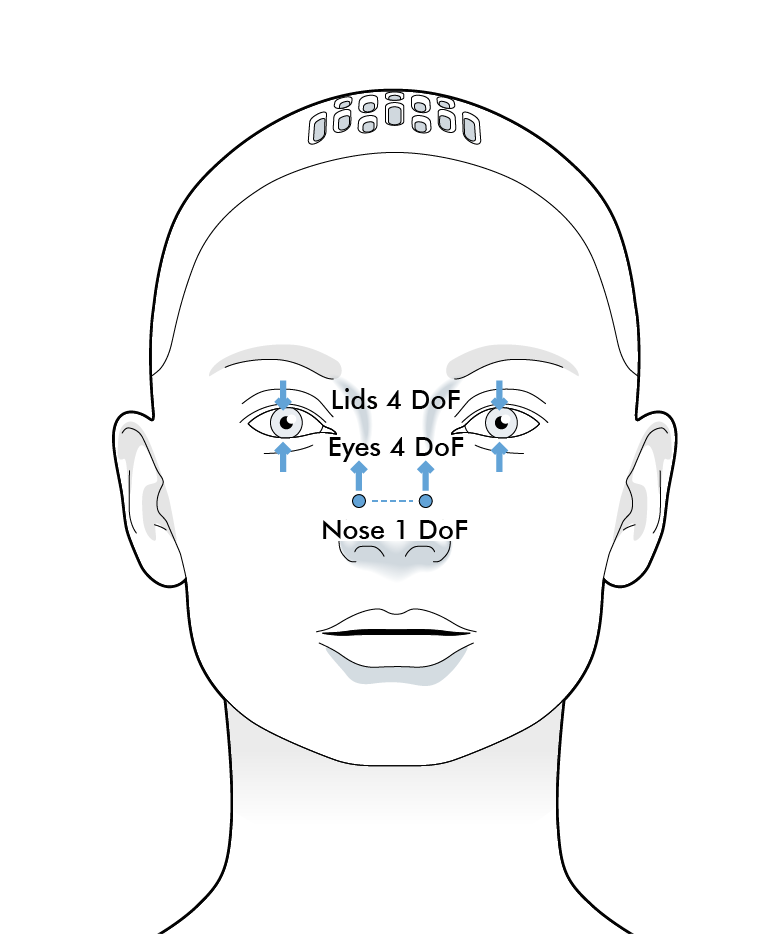
Each eye has 4 degrees of freedom:
- eye pitch (eyeball moves up and down)
- eye yaw (eyeball moves side-to-side)
- eyelid lower (lower eyelid moves up and down)
- eyelid upper (upper eyelid moves up and down)
There is a further degree of freedom for the nose:
- nose wrinkle (wrinkles the nose in the manner of a sneer or snarl)
¶ Gaze
Instead of manually handling the eye pitches and yaws, gaze can be used. Gaze prescribes a point in the distance that the robot should look at.
To make the robot easy to control, the eyelids positions are mapped to a relative scale: [-1,2]
- an eyelid position of
-1represents the eyelids squeezed shut - an eyelid position of
0represents the eyelids shut in a natural position - an eyelid position of
1represents the eyelids open in a normal position - an eyelid position of
2represents the eyelids wide open
Values between-1and2are interpolations of these positions.
The nose has a relative scale between [0,1] For the nose, a poistion value of 0 is a relaxed (normal) nose and a position value of 1 is a snearing nose.
¶ Poses
There are 6 pre-made poses that can be used to set the eyelids in predefined positions:
¶ Eyelids Open
- eyelids in a normal open pose
¶ Eyelids Close
- eyelids in a normal closed pose
¶ Eyelids Wide
- upper and lower eyelids in wide open position
¶ Eyelids Bottom Up
- the upper eyelid is in the "Eyelids Wide" position, while the lower lid is raised to a closed position
¶ Eyelids Top Down
- the eyelids are closed, but the meeting line between the lids is lower down the eyeball than in the standard "Eyelids Close" pose
¶ Eyelids Squeeze
- eyelids squeezed tight shut - similar to "Eyelids Close" but the eyelids are firmly pressed together
¶ Cameras
Each eyeball houses an 8 MP camera, forming part of the robot's sensor array.
Resolution
8 MP is the theoretical maximum resolution of the camera sensors. A lower resolution is typically used for most robot operations where video data is continuously streamed, due to data quantity considerations. The out-the-box default resolution is set to 720p.
Optional Feature
Ami Desktop robots include eyeball cameras by default. Some units are shipped without eyeball cameras at specific customer request.
¶ Control API
The actual position of the module can be accessed using controls.
Controls are accessed with the notation :
my_control = system.control(Control_name, Namespace, acquire = Parameters)
As there are two eyes (left and right) this is represented in the notation.
Below is an example of finding the position of the left lower eyelid and then making it lower.
#get access to the control
left_lower_eyelid_control = system.control(
    "Eyelid Lower Left", "Mesmer Eyelids 1", acquire=["demand","position"]
)

class Activity:
    def on_start(self):
      #find the eyelid position
      current_eyelid_position = left_lower_eyelid_control.position
      print(current_eyelid_position)
      #lower the eyelid to almost fully open
      left_lower_eyelid_control.demand = 1.8
The eyelid driver (HB3/1.Actuation/Drivers/Eyelids.py) must be running for this to work.
The on_tick method can be used for more powerful, time varying demands.
A more complete tutorial on controls is given here.
¶ Control parameters:
| Control name | Namespace | Avaliable parameters |
|---|---|---|
"Eyelid Lower Left" |
"Mesmer Eyelids 1" |
["demand","position"] |
"Eyelid Lower Right" |
"Mesmer Eyelids 1" |
["demand","position"] |
"Eyelid Upper Left" |
"Mesmer Eyelids 1" |
["demand","position"] |
"Eyelid Upper Right" |
"Mesmer Eyelids 1" |
["demand","position"] |
"Eye Pitch Left" |
"Mesmer Eyes 1" |
["demand","position","min","max"] |
"Eye Pitch Right" |
"Mesmer Eyes 1" |
["demand","position","min","max"] |
"Eye Yaw Left" |
"Mesmer Eyes 1" |
["demand","position","min","max"] |
"Eye Yaw Right" |
"Mesmer Eyes 1" |
["demand","position","min","max"] |
"Gaze Target Distance" |
"Mesmer Gaze 1" |
["demand"] |
"Gaze Target Phi" |
"Mesmer Gaze 1" |
["demand"] |
"Gaze Target Theta" |
"Mesmer Gaze 1" |
["demand"] |
"Nose" |
"Mesmer Nose 1" |
["demand","position"] |
The control_name, namespace and avaliable parameters for each control is given in the control section of the scripts page in Tritium UI, this gives more information about datatypes and access rights.