If your robot isn't moving, there are some simple steps that can be taken to diagnose the issue and get your robot back up and running.
¶ Motor Power Supply
- Check that both power supply bricks are plugged in, turned on and have the green LEDs illuminated
- Check that the connections to the Power Breakout Box is secure
¶ Motor Power Button
- At the right hip, there are three buttons used for controlling power to the robot
- Check that the red button, "Motor", is pressed down and lit up
¶ Voltage Levels
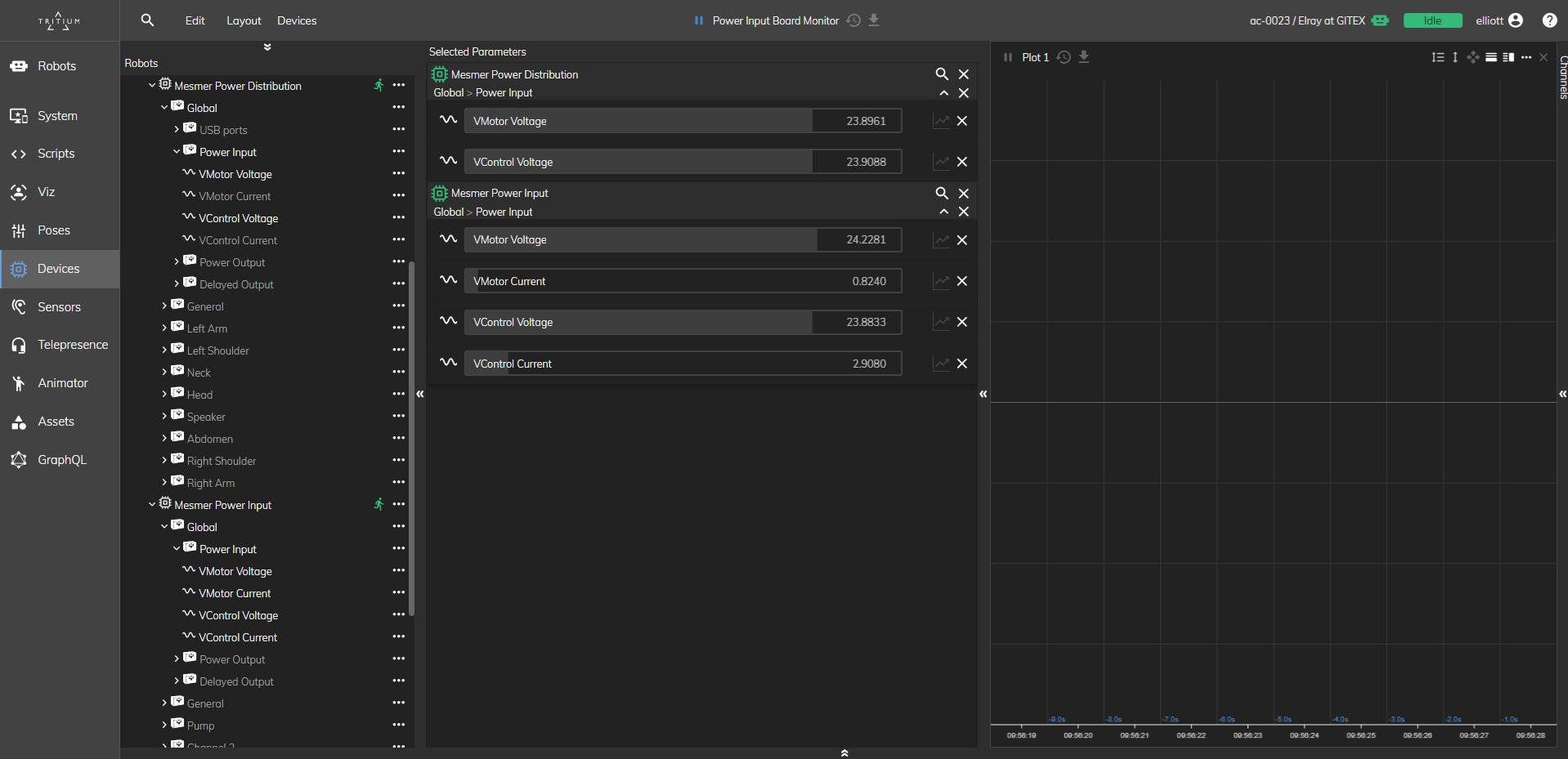
- The voltage levels of the motor power supply can be checked through the Tritium Devices page
- The motor power supply should be ~24V
- From the Devices tab, open the Mesmer Power Input board, and select Global.Power Input.VMotor Voltage to view the live motor voltage coming into the robot
- From the Devices tab, open the Mesmer Power Distribution board, and select Global.Power Input.VMotor Voltage to view the live motor voltage being distributed across the robot
¶ Robot State
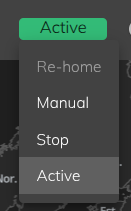
- Check that the robot is in the ACTIVE state, as seen in the top right of Tritium
- Ensure that the robot is not in the STOP state
- The state can be changed by clicking on the current state in the top right, and selecting a new state from the drop-down menu
¶ Animation Scripts
- The robot has default idle animations to show that it is up and running, and these are triggered by scripts
- If these scripts are running, then it can be simple do understand if it's a custom-animation that isn't working, or that there is no motor power
- From the Scripts tab in Tritium, ensure the following scripts are running:
- HB3/Actuation/~
- HB3/Drivers/~
- HB3/Human_Animation/~ (except Add_Speech_Pauses.py)
- HB3/Look_At/~
- HB3/HB3_Controller.py