Applies to: Mesmer Desktop Gen 3 (product code MD3) only. For Gen 2, see Robot perception — Desktop Gen 2.
This page covers multi-person conversation tracking on MD3 — who is speaking, where the robot looks, and how it chooses who to answer. It uses the robot’s HD chest camera (not the eye cameras). For full hardware specifications, see Mesmer Desktop Specifications in the Gen 3 manual.
Feature availability: Multi-person conversation tracking is available on Mesmer Desktop Gen 3 only. It is not supported on Full Size Gen 2 or Desktop Gen 2 robots.
When more than one person is present, your Mesmer Desktop Gen 3 robot can track who is speaking, look at them while they talk, and direct its response back to the right person. This makes group conversations feel natural — each person gets its attention when it is their turn, and nobody ends up with an answer meant for someone else.
¶ How it works
Your robot combines what it sees and what it hears to work out who is speaking at any given moment. It tracks the faces of everyone in the conversation and continuously matches incoming speech to the right person — even when people are standing close together.
Once it knows who is speaking, it turns to look at them. When it replies, it keeps its attention on the person it is answering, so there is no ambiguity about who the response is for.
This all happens in real time, so the conversation flows at a natural pace without noticeable lag when the speaker changes.
Multi-person speaker detection uses the chest camera only, not the eye cameras.
¶ What to expect
¶ It will look at you while you speak
When you start talking, the robot will turn its attention toward you within a natural beat — before you have finished your first sentence. Its gaze stays with you for as long as you are speaking, including if you pause briefly to collect your thoughts.
¶ It will answer the right person
When the robot responds, it looks at the person whose question it is answering. If you asked the question, you will see it looking at you throughout its reply. Others nearby will not receive the same focused attention unless they ask something directly.
¶ Attention switches cleanly between speakers
As the conversation moves between people, the robot's attention follows. When one person finishes and another starts, you will see the gaze shift smoothly — no jitter, no lag, no confusion about who is speaking next.
¶ If it is unsure who spoke, it will ask
In rare cases — for example if two people speak at exactly the same time — the robot may ask for clarification rather than guess. This keeps the conversation accurate rather than risking a response directed at the wrong person.
¶ Works best with 2–3 people
Multi-person conversation tracking is optimised for groups of 2–3 people. Performance is maintained with up to 4 people in close proximity.
¶ Current limitations
As with any technology, there are situations where performance may be reduced. Being aware of these helps you get the best out of your robot in a group setting.
- In very loud environments, or where multiple people speak over each other for extended periods, the robot may have difficulty identifying the correct speaker and could respond to whoever spoke the most.
- If someone moves out of view while speaking and then returns, attention will resume on them cleanly — but very sudden or large movements mid-sentence may briefly affect tracking.
- Side conversations between people who are not addressing the robot may occasionally draw its attention. If this happens, simply speak to it directly and it will re-engage with you.
- If you pause for a long time mid-thought, the robot may think you have finished speaking and begin to respond. Simply let it finish and then continue with what you wanted to say.
¶ Your privacy
Your Desktop Gen 3 robot does not record your voice or create any kind of voice profile from your interaction. The audio processing used to identify who is speaking happens in the moment and is not stored or transmitted after the conversation ends. When you walk away, no trace of your voice remains.
For more information on how Engineered Arts handles your data, see Privacy and data handling.
¶ Interaction toggle and responses
Multi-person speaker detection and look-at behaviour are not switched off by the Interaction toggle. The chest camera continues to receive audio and video so the robot can detect who is speaking and, in most cases, look at them.
| Interaction toggle | Speaker detection and gaze | Spoken responses |
|---|---|---|
| On | Detects who is speaking and looks at them | Speech recognition is active — the robot can listen and reply |
| Off | Still detects who is speaking and looks at them (a silent observer) | Speech recognition is off — the robot will not join the conversation |
The toggle controls whether the robot responds in speech, not whether it notices who is speaking. This is separate from chat modes (Interaction, Silent, Conference) on the Agent. See Interacting with your robot for how to turn Interaction on and off.
¶ View in Tritium UI
¶ Viz
Open Viz after connecting to your robot.
- Detected faces in world space and multi-person speaker data can be viewed in the world view when toggled in the Assets panel (eye icons on the left), as on Gen 2.
- You cannot overlay the captured video feed on the world view — only the perception data in world space.
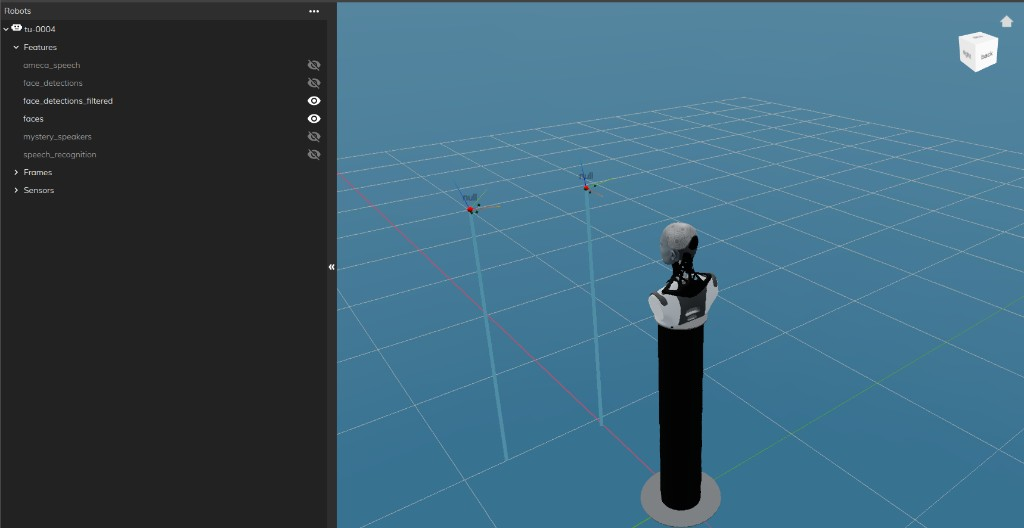
Further UI detail is on the Viz page.
¶ Sensors
The chest camera is not listed on the Sensors page yet — it may be added in a future software update.
You can still view other sensor feeds on Sensors where your software version supports them (for example eye cameras on earlier configurations). There is no composited perception overlay on the raw camera feed in Sensors.