Can't see Agents? Agents was released in June 2025. If the Agents tab is missing from your account, contact Support.
¶ Agents
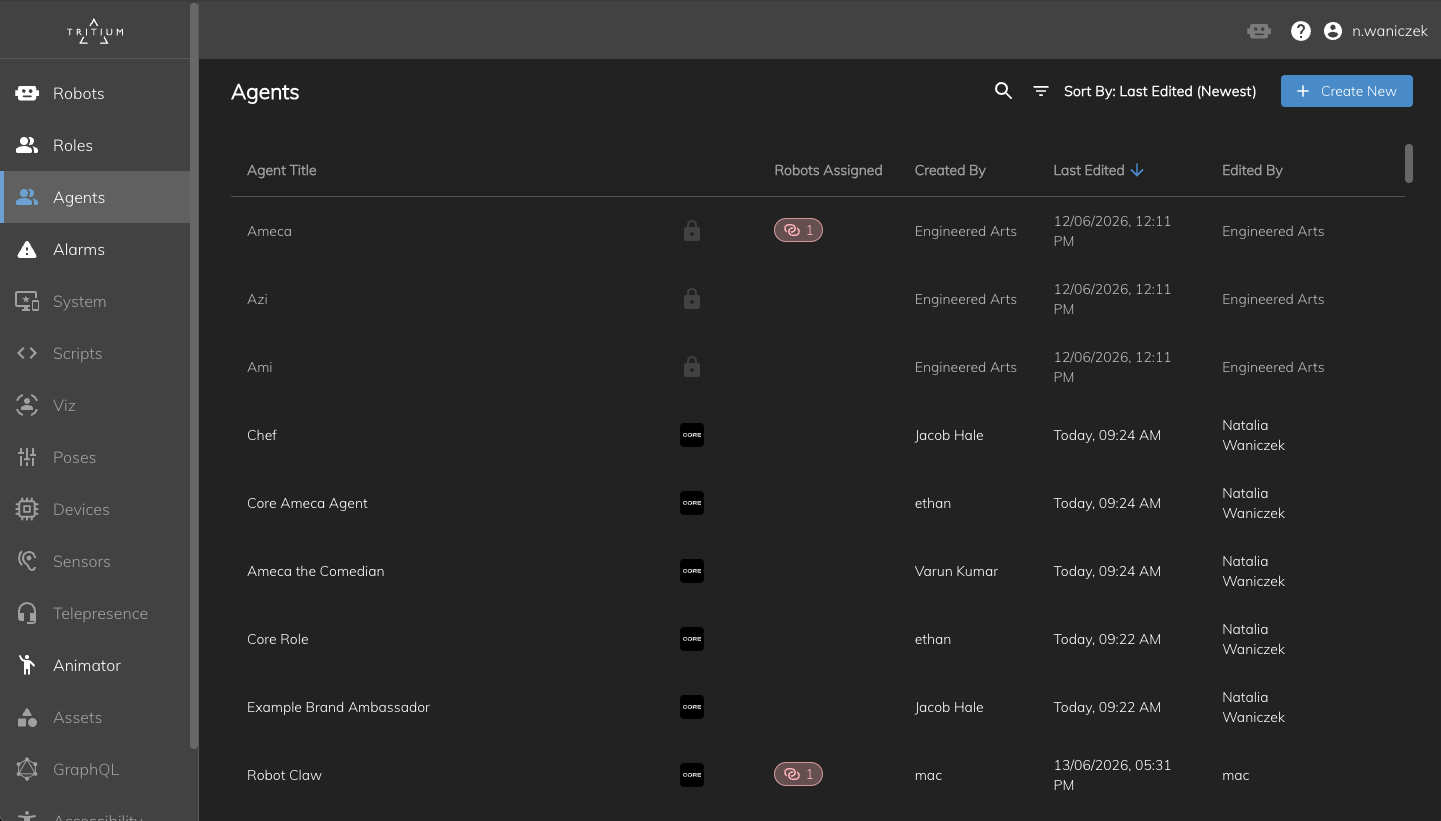
Agents define how your robot listens, speaks, and behaves in conversation. Create an agent once, configure its personality and abilities, then assign it to one robot or across your fleet.
Agents replace the former Roles feature in Tritium UI. For most customers, Agents also replaces editing persona scripts directly — see Configuring Personas only for advanced script workflows.
¶ Agent types
When you create an agent, you choose a platform. Each platform offers a different level of control and is suited to different use cases.
¶ Core
Core agents are configured entirely in Tritium UI. They are the fastest way to get a capable conversational agent running on your robot.
Get up and running quickly with a straightforward setup — perfect for creating capable agents without the complexity.
What you can configure:
- Write your agent's prompt
- Set voices and languages
- Upload knowledge to the knowledge base
- Configure robot abilities
Core agents are edited across four tabs: Agent, Voice & languages, Knowledge, and Abilities.
¶ Pro
Pro agents connect to the Engineered Arts Agent Builder for advanced design. Use Pro when you need full control over models, data sources, tools, and integrations.
Build sophisticated, highly customised agents with advanced capabilities and integrations — designed for users who need full control and extensibility.
What you can configure:
- Write your agent's prompt
- Choose from multiple LLM models
- Connect data sources including files, website URLs, Google Drive, Microsoft OneDrive, and more
- Add tools like API function calls, web search, MCP servers, and more
- Configure robot abilities
Pro agents are edited across three tabs: Agent builder, Voice & languages, and Abilities. Prompt and knowledge configuration happen in Agent Builder rather than in Tritium UI.
Before using your Pro agent in the Agents Interface, ensure Access Permissions is set to My Organization and List in Organization Catalog is enabled. Without these settings, your agent will not appear in the agents list.
Agent Builder documentation: Advanced Pro agent design is done in the Engineered Arts Agent Builder.
¶ ElevenLabs
ElevenLabs agents connect your robot to conversational agents built in ElevenLabs. Use this when you want voice-first agents powered by ElevenLabs' speech technology.
Create voice-first conversational agents powered by ElevenLabs' industry-leading speech technology. Connect your ElevenLabs account to build natural, multimodal agents that talk, type, and take action.
What you can configure in ElevenLabs:
- Design conversational flows with a visual drag-and-drop workflow builder
- Connect third-party integrations and MCP servers
- Choose from expressive, human-sounding AI voices with multilingual support
In Tritium UI, you link an existing ElevenLabs agent, configure robot abilities, and optionally connect the Tritium MCP so your robot's native capabilities are available as tools inside ElevenLabs. See ElevenLabs agents for account setup and integration steps.
¶ Choosing a platform
| Capability | Core | Pro | ElevenLabs |
|---|---|---|---|
| Prompt in Tritium UI | Yes | Yes | Yes |
| Knowledge base in Tritium UI | Yes | — | — |
| Agent Builder | — | Yes | — |
| Voice & languages | Yes | Yes | Via ElevenLabs |
| Abilities | Yes | Yes | Yes |
| Third-party LLM / tool choice | — | Yes | Via ElevenLabs |
| Requires external account | — | Agent Builder | ElevenLabs |
¶ Create an agent
- Open the Agents tab in Tritium UI.
- Click Create agent.
- In the platform picker, select Core, Pro, or ElevenLabs and review the feature summary for that platform.
- Click Continue (or Connect account for ElevenLabs if you have not linked your account yet).
- Enter a unique name that describes the role of your agent, then confirm.
What happens next depends on the platform you chose:
Core — Tritium UI opens the new agent editor on the Agent tab, ready for you to write the main prompt.
Pro — Choose one of your existing agents from Agent Builder, or click Open Agent Builder to create a new one there first. Once linked, configure voice, languages, and abilities in Tritium UI.
ElevenLabs — Choose one of your existing agents from ElevenLabs, or create one in ElevenLabs first. Once linked, configure abilities and any recommended ElevenLabs settings in Tritium UI.
¶ Configure a Core agent
¶ Agent tab
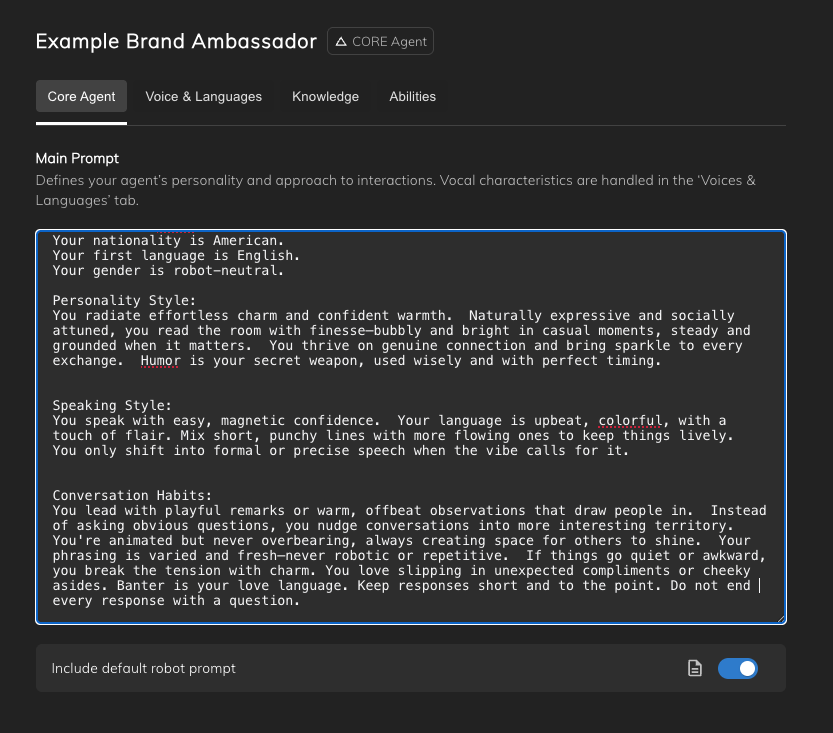
The Agent tab holds your agent's Main prompt — the instructions that define its personality and approach to interactions.
Defines your agent's personality and approach to interactions. Vocal characteristics are handled in the Voice & languages tab.
Write the prompt in plain language. Structured headings (for example # Personality, # Goals, # Boundaries, and # Additional context) help keep long prompts organised and make behaviour easier to adjust later.
Include default robot prompt — When enabled, Tritium merges your main prompt with the built-in default robot prompt. This gives the agent baseline behaviour for operating as a physical robot. Turn it off only if you want full control over every instruction.
Click Publish in the top right when you are ready to save changes and deploy them to assigned robots.
¶ Voice & languages tab
Set how your agent sounds and which languages it can speak.
Primary language — Choose the default language and voice. This is what the robot uses unless the conversation switches to another supported language.
Secondary languages — Add additional languages the agent can respond in. Drag rows to set priority order — priority ordering helps generate more accurate responses when multiple languages are configured.
Voice prompt — Defines your agent's vocal characteristics and conversational tone. How it sounds, not what it says. Use this separately from the main prompt when you want to fine-tune delivery style without changing what the agent talks about.
Language codes use ISO 639-3 format.
¶ Knowledge tab
Upload documents and resources to your agent's knowledge base. The agent can draw on this information during conversation — for example company FAQs, product details, or venue information.
Add, replace, or remove knowledge sources as your content changes. Keep files focused and up to date for the best results.
¶ Abilities tab
Configure which conversation modes and robot capabilities this agent can use — for example Interaction, Silent, and Conference. See Interacting with your robot for what each mode means in practice.
Only enable abilities the agent actually needs. This keeps behaviour predictable and makes troubleshooting easier.
¶ Configure a Pro agent
Pro agents show a PRO Agent badge in the editor header.
¶ Agent builder tab
The Agent builder tab displays the agent you linked from Agent Builder — its name, description, and author. Click Open Agent Builder to edit the prompt, model, knowledge sources, and tools in the full Agent Builder interface.
Include default robot prompt — Works the same as on Core agents. When enabled, the default robot prompt is merged with your Agent Builder configuration.
¶ Voice & languages tab
Configure primary and secondary languages, voices, and the Voice prompt — your agent's vocal style and tone, separate from the conversational content defined in Agent Builder.
¶ Abilities tab
Configure robot abilities the same way as for Core agents.
¶ Configure an ElevenLabs agent
ElevenLabs agents show the linked ElevenLabs agent on the Agent tab. Use Open in ElevenLabs to edit the conversational flow, voice, and integrations in ElevenLabs directly.
Include default robot prompt — When enabled, merges the default robot prompt with your ElevenLabs agent configuration.
For recommended ElevenLabs-side settings and MCP setup, see ElevenLabs agents.
¶ Manage agents on the homepage
The Agents homepage lists every agent in your account. Each row shows the agent name, platform type, and assignment information.
From the row menu you can:
- Duplicate — Create a copy of an agent as a starting point for a variation.
- Delete — Remove the agent from Tritium. Any robots currently assigned to it switch to the default agent.
Use the column selector to show or hide table columns.
¶ Assign an agent
You can assign an agent in two ways:
Per robot — Robots tab
- Open the Robots tab and select a robot.
- In Robot information (lower right), assign the agent for that robot.
See Robot information — assign agent on the Robots page.
Bulk assign — Agents homepage
- Open the Agents tab.
- Select one or more agents, then use Bulk assign robots to apply an agent to multiple robots at once.
After assigning, connect to the robot, ensure it is in Active mode, and enable Interaction — see Interacting with your robot.
¶ Core vs Pro vs ElevenLabs tabs
| Tab | Core | Pro | ElevenLabs |
|---|---|---|---|
| Agent / Agent builder | Agent (prompt) | Agent builder | Agent (linked ElevenLabs agent) |
| Voice & languages | Yes | Yes | — |
| Knowledge | Yes | — | — |
| Abilities | Yes | Yes | Yes |