¶ Mesmer Desktop Installation and Operating Instructions
Product Code: MD3
Important: Before using this user manual or operating the robot, ensure that you have read and understood the accompanying compliance leaflet, which contains important regulatory, safety, and legal information.
Legal and Compliance Leaflet
Read the Mesmer Desktop Gen 3 — Legal and Compliance Leaflet before installation or operation.
¶ Introduction
Thank you for selecting an Engineered Arts Mesmer Desktop robot. This manual covers installation and operation.
This head-and-shoulders Mesmer Desktop robot is interactive, and fully programmable.
The Mesmer Desktop robot is engineered for applications in entertainment, education, and research. It features 32 Degrees of Freedom (DoF), comprising 5 DoF in the neck and 27 DoF dedicated to animating the eyes, lips, and other facial features.
To facilitate two-way audio-visual interaction, the Mesmer Desktop robot is equipped with an integrated microphone, cameras, and a speaker.
The Mesmer Desktop robot is powered by the Tritium software platform.
¶ Box Contents
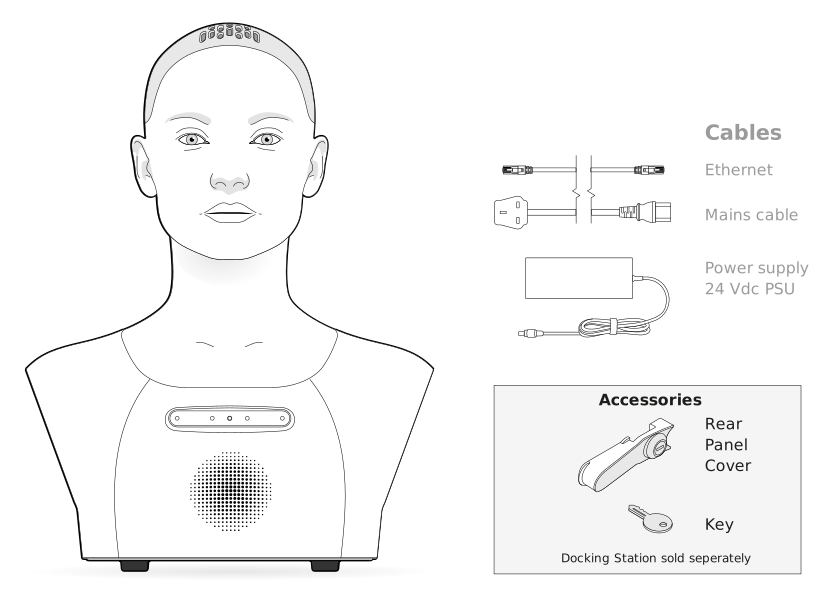
¶ About this Document
¶ Intended Audience
This document is intended for owners and operators of Engineered Arts Mesmer Desktop robots. The manual is an essential part of the Mesmer Desktop robot’s documentation, and all users must fully familiarise themselves with its contents prior to operation. Installation and operation activities must only be undertaken by persons who meet the following criteria:
i) Have read about and fully understood the procedures outlined in this documentation; AND
ii) Are confident and capable of undertaking these activities based on their own skills and experience.
¶ Applicable Models
This user manual applies specifically to Mesmer Desktop robots with the product code MD3.
Since many Engineered Arts Mesmer Desktop robots include customer-specific features or options, some models may exhibit cosmetic differences from the reference images in this document. Furthermore, some models may have variations in the number and/or range of movements compared to the values shown. In these cases, users should disregard non-applicable data. Where additional, customised features have been added to a specific model, separate user documentation is provided for those particular features alongside the relevant Mesmer Desktop robot(s).
¶ Symbols and Markings
The following markings are used throughout the documentation. Users must take special care to read and follow all such instructions.
 | Danger Message Failure to follow instructions endangers the life and health of persons |
 | Warning Message Failure to follow instructions could result in serious injury or risk to life and health to persons |
 | Caution Message Failure to follow instruction may lead to injury to persons |
¶ Safety Instructions
General regulatory and product safety information is in the compliance leaflet. The following warnings apply specifically to installation and operation procedures in this manual.
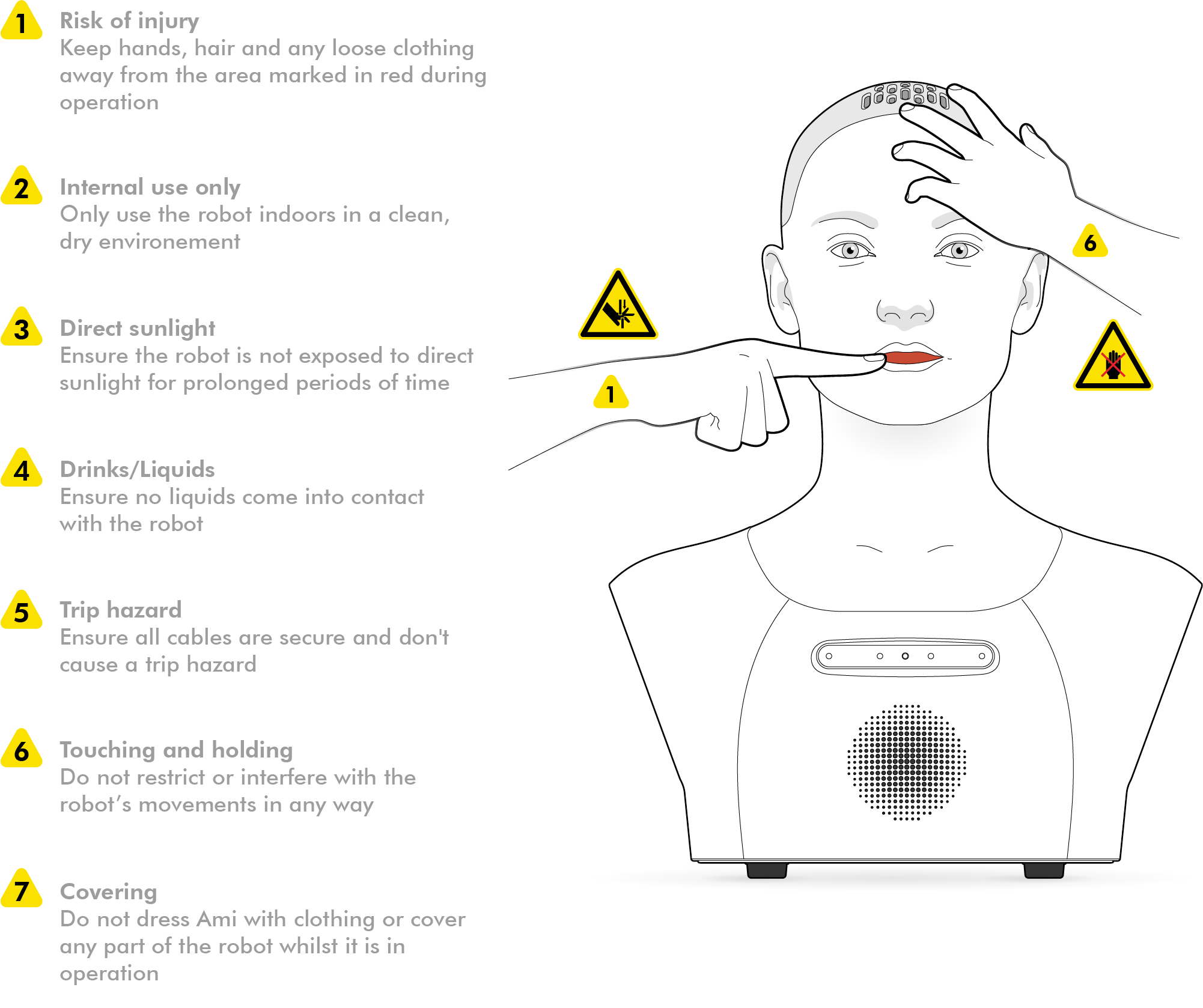
| Finger/hand Pinch Hazard Take great care when touching or working with any of the robot's moving parts. The robot can be manually moved in the unpowered state \- there are multiple points where fingers and or hands might be pinched by a mechanism in such an event. Never attempt to touch or work with any of the robot’s moving parts when it is operational or connected to the power supply. |
¶ Intended Use and Limitations
¶ Intended Use
- The robot is designed exclusively for purposes of entertainment and/or research and development (R&D).
- It is intended for installation in venues such as visitor attractions, research laboratories, or similar settings, where it serves as an exhibit, attraction, or R&D platform.
- As an attraction or exhibit, the robot is designed as an installation for users to observe, listen to, and talk to.
- As a research platform, the robot is designed as a hardware device to execute customer software algorithms as part of their research activities.
¶ Limitation of Intended Use
- The robot is not designed for any type of physical interaction, either with human beings, animals, or any other physical object, with the exception of manufacturer-supplied or approved accessories (e.g., costume).
- The robot is not designed to operate outdoors, in wet environments, or in conditions of unusually high or low temperatures or humidities (see also: Operating Environment).
- The robot is not intended for any purpose other than entertainment; for example, it is not designed for delivering critical factual information, such as building fire escape directions or medical diagnoses.
¶ Operating Environment
The robot is suitable for indoor use only. Recommended environmental conditions:
 | Room temperature: 10-30°C (50-86°F) |
 | Humidity: 45-60% |
- The robot must not be used, stored, or transported in wet environments where it may be exposed to leaks, splashes, or other sources of liquid contamination (e.g., near swimming facilities or ornamental water features).
- The robot must not be used, stored, or transported in environments with excessive dust or particulate contamination (e.g., machine workshops or construction environments).
- The robot must not be operated in an explosive atmosphere.
¶ Mesmer Desktop Specifications
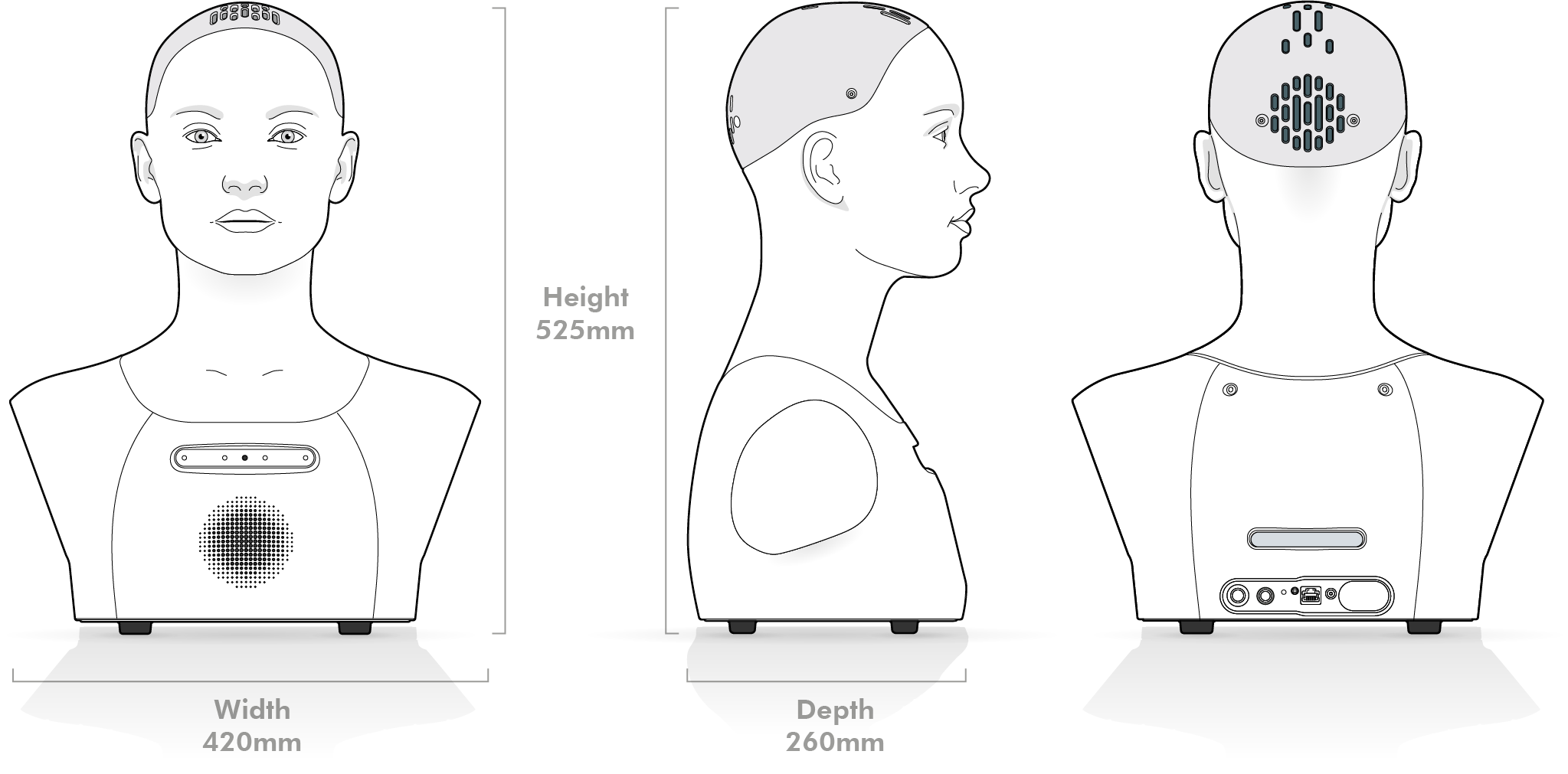
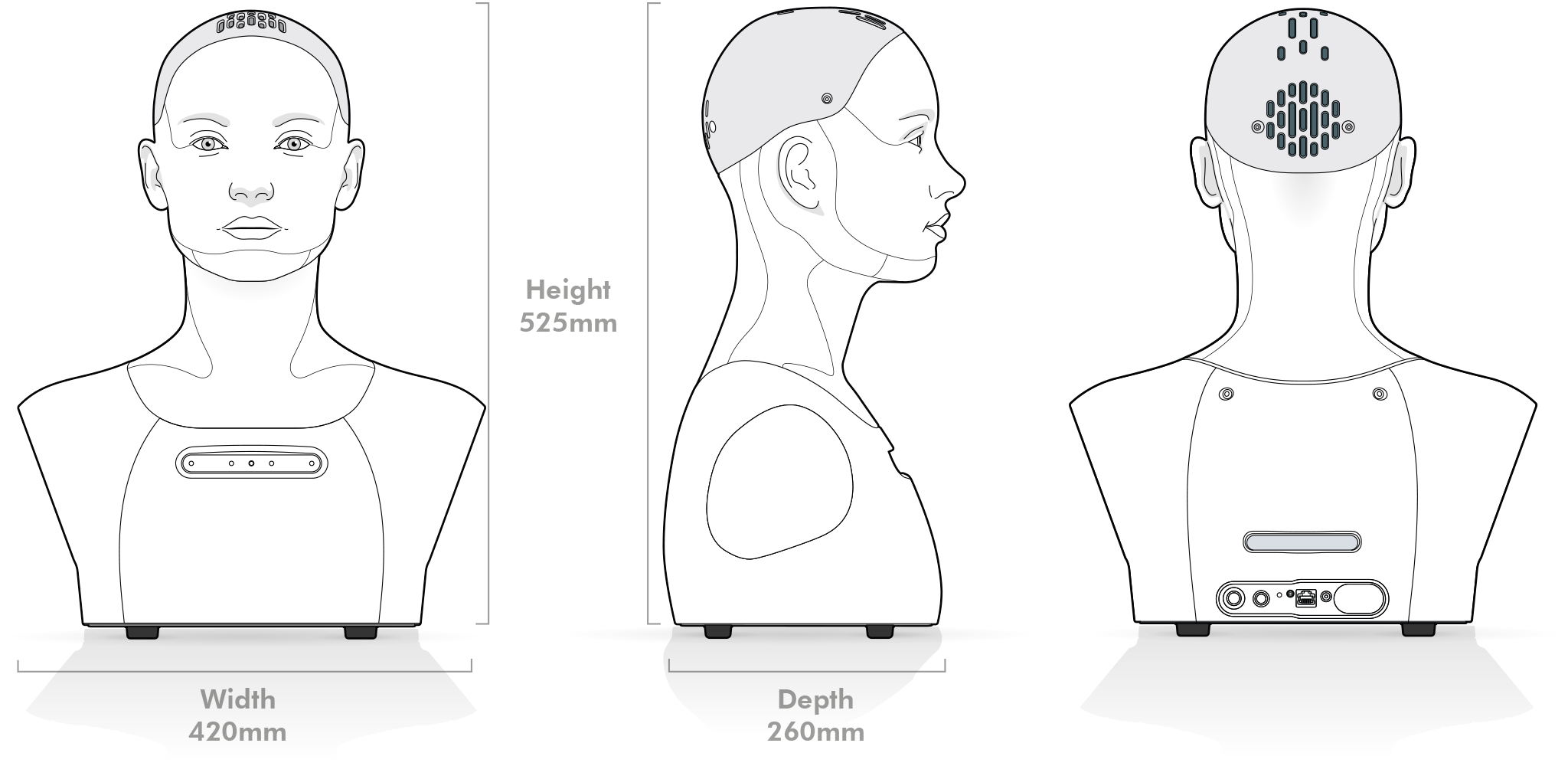
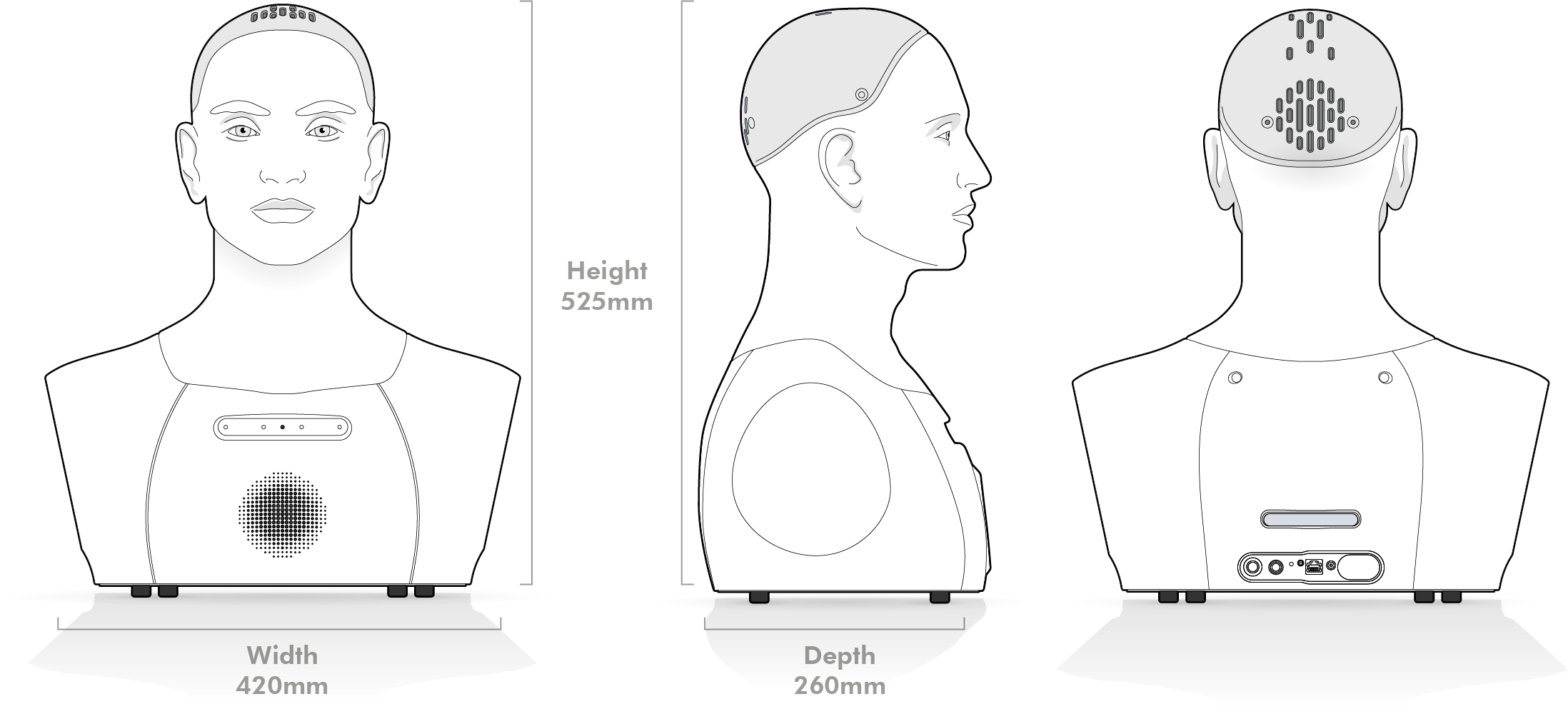
¶ All models
 | Mass 8 kg |
 | Motors 32 |
| Feature | Specification |
|---|---|
| Electrical Specification | |
| Robot Supply | 24 Vdc, 200W |
| External PSU | External PSU 100-240 VAC 50-60Hz |
| Sensors | |
| Cameras | 2x HD eye cameras |
| HD chest camera | |
| Microphone | Beamforming microphone |
| Servo Feedback | Current sensing on all servos |
| Other | Radar |
| Connectivity | |
| Wired | Ethernet RJ45 |
| Wireless | Wi-Fi 7 (2.4GHz, 5GHz, and 6GHz) |
| Audio | 3.5mm Audio in/out |
| Integrated Speaker | |
| Audio Output | 20W Audio output |
¶ Installation
¶ Unboxing
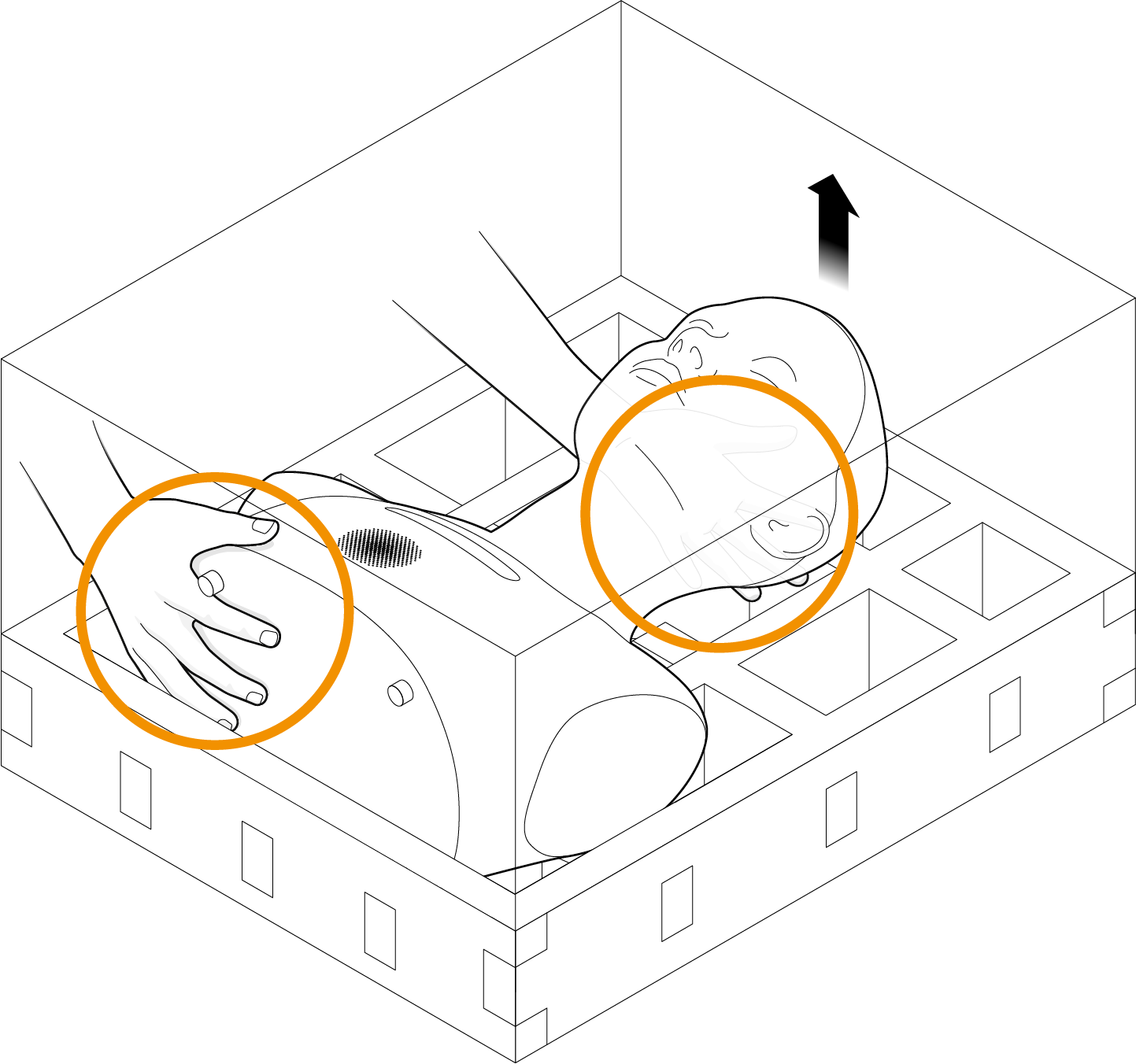
You must read and understand this user manual in full before attempting to install the robot. Observe the conditions in Intended Use and Limitations » Operating Environment to confirm that your intended installation site meets with the required environmental conditions.
| Lifting and Handling The robot weighs approximately 8kg. Take care and follow good manual handling practices while lifting and moving. |
| Lifting and Handling The robot is an intricate and delicate product. Take care to avoid harsh handling, knocks, and drops. Careless handling may damage the product. |
- The robot should typically be installed on a desktop, counter, or similar work surface.
- Always place the robot on a clean, dry, flat surface, away from any drops or edges.
- Always ensure good clearance between the robot and any other materials or equipment.
¶ Setup
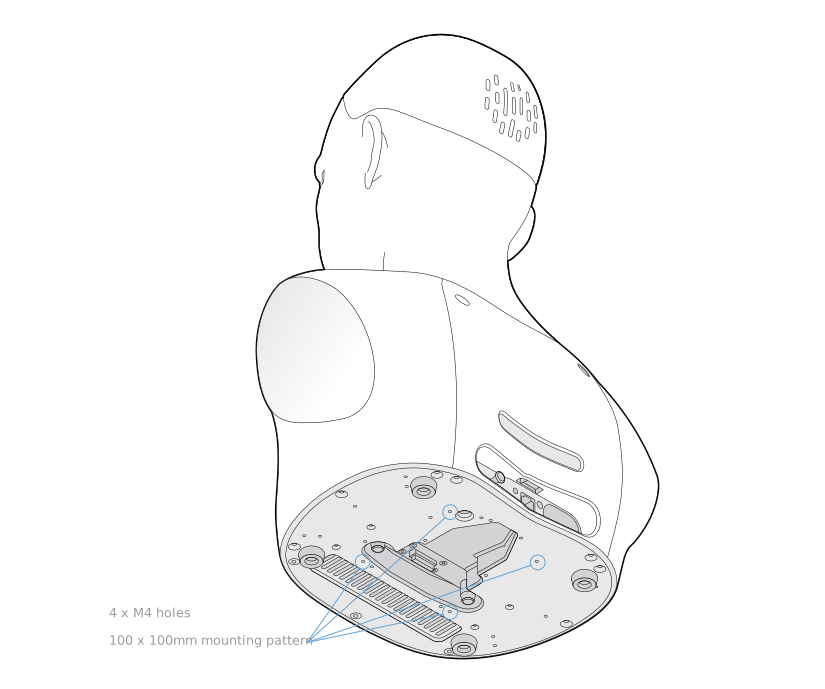
The robot is designed for stable placement on a flat surface, requiring no additional fixing for standard operation. For secure mounting, you can use the optional docking station (purchased separately) or the four M4 threaded mounting holes, which are arranged in a 100mm × 100mm square pattern. A drilling guide is provided to assist with surface preparation, but fasteners are not supplied with the robot.
¶ Docking Station
The Docking Station for the robot is an optional accessory that must be purchased separately. When the robot is being used in conjunction with this dock, the supplied rear panel cover is intended to be installed to securely fasten the robot to the docking station. It is important to note that the rear panel cover should be installed exclusively when a dock is in use. This is because the cover blocks access to the rear panel, which is necessary to establish the cable connections for operation when not docked. For rear panel cover installation instructions, please refer to the Docking Station user manual.
¶ Cable Connections
| Power Supply Caution Always use the manufacturer-supplied power supply. Do not attempt to power the robot from any other source. |
¶ Connection Steps
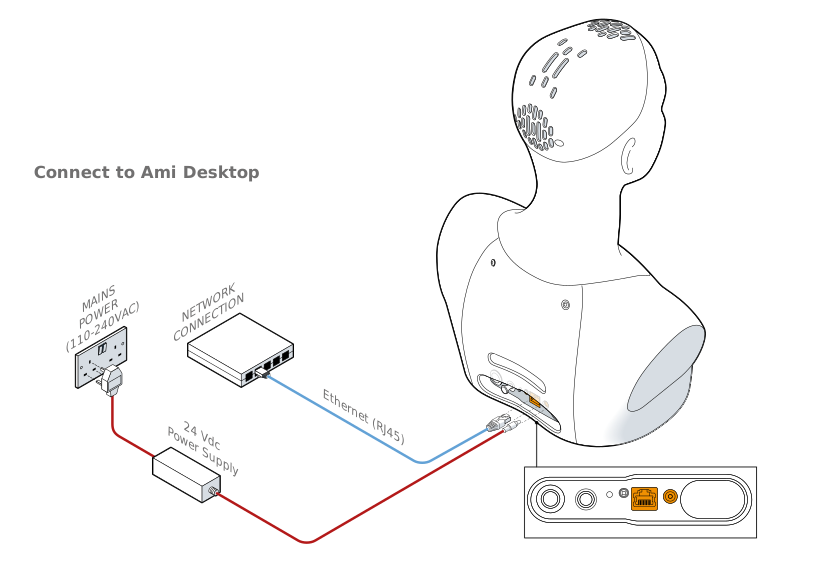
- Connect the 24 Vdc power supply to the robot and to a mains power outlet.
- If not using Wi-Fi, connect the robot to the internet via a wired ethernet (RJ45) connection.
For optional external audio via the 3.5 mm jack, see External Audio Devices — Desktop Gen 3.
¶ Powering On and Off
¶ Powering On
-
Press and hold the push button for at least 1 second to power on the robot.
-
The robot will take approximately one minute to start up.
- During startup, the robot will perform an automatic self-calibration routine.
- The robot will move its degrees of freedom during self-calibration.
- Do not touch or interfere with the robot during startup.
¶ Powering Off
- Initiate the shutdown sequence by performing a short press on the push button (indicated by a blue LED).
- Do not hold the button down, as this action will force an emergency power cut after 10 seconds.
- Shutdown can take up to one minute.
- When the shutdown is complete, the blue LED will go out.

¶ Bluetooth Button
The Bluetooth button on your robot is used when pairing the robot with Tritium Connect to provision Wi‑Fi. It is separate from the power push button used to turn the robot on and off.
You can turn Bluetooth on/off by holding the button down for 3 seconds.

For Ethernet and Wi‑Fi setup, see Robot connectivity. For firewall rules and corporate networks, see Network setup for IT.
¶ Operating Instructions
The robot is operated using the Engineered Arts Tritium software platform. The Tritium user interface is 100% web-based and can be accessed from any internet-connected computer without any local installation.
To connect to your robot and explore its functionality, refer to the Getting Started page.
¶ Degrees of Freedom (DoF)
The robot has a total of 32 actuated degrees of freedom.
The robot is constructed from a number of modules. Please refer to the individual module pages for documentation on how each module moves and is controlled.
Your robot includes the following modules:
- Brow Module v3 – Controls motion of the eyebrows and nose.
- Eye Module v4 – Controls motion of the eyeballs and eyelids.
- Lip Module v2 – Controls motion of the jaw and lips.
- Neck Module v6 – Controls overall head and neck motion.
¶ Head LEDs
Learn what each LED color on your robot signifies, from operational and interaction modes to alerts here.
¶ Expressions
Your robot is equipped with a range of expressions. See expressions for more details.
¶ Care and Maintenance
See Care and Maintenance.