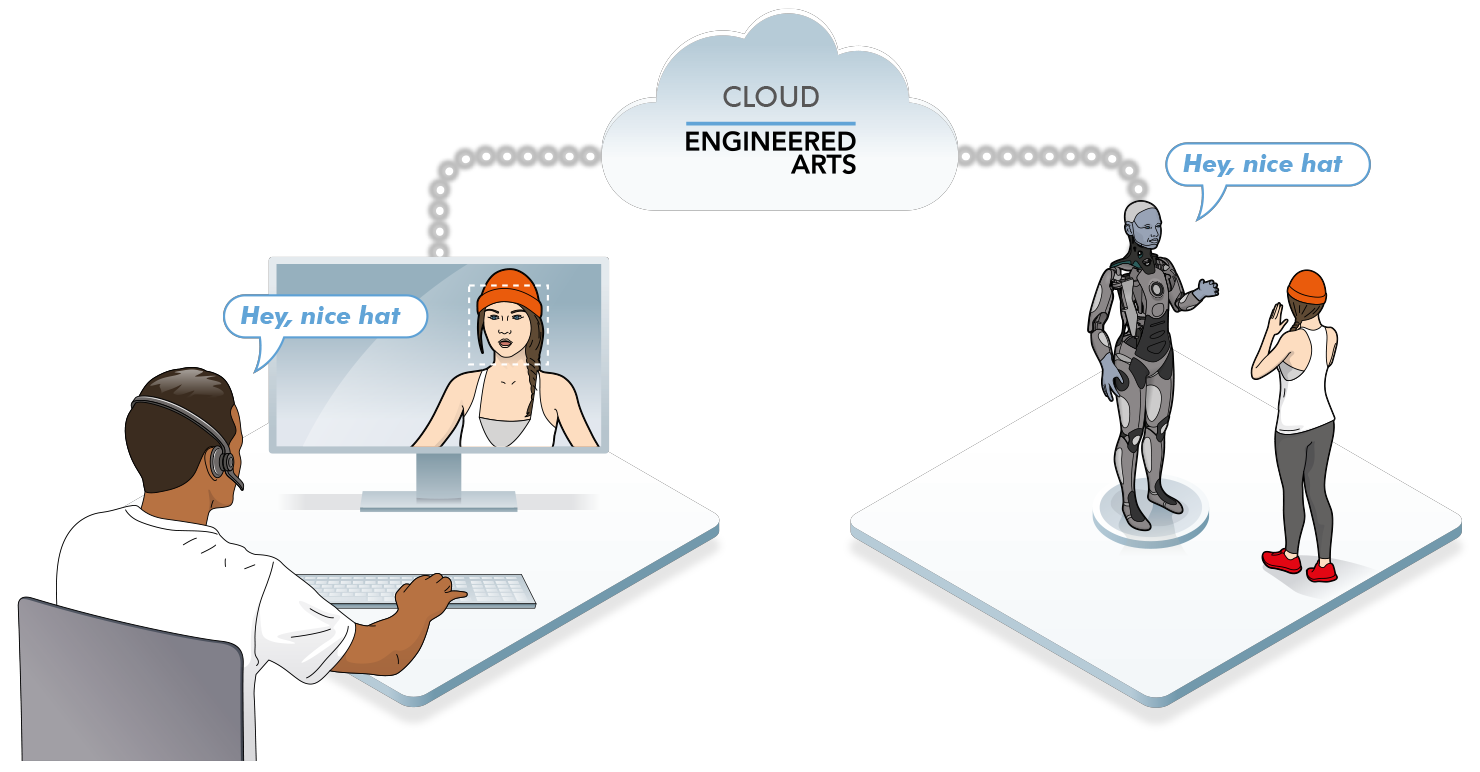
Telepresence provides control of a robot for a remote human operator. The robot becomes an avatar connected via a local area network, (LAN), or The Internet.
If this application is installed on your robot, you can access it from the Tritium UI after connecting to the robot you want to control.
For trouble shooting connection issues see here →
To initiate a Telepresence session, press the centre Start Telepresence button. The UI will then load the live video feed from the robot and display it on-screen.
To toggle the visibility of asset labels, press h.
To end a Telepresence session, press the Stop Telepresence button in the top bar of the Telepresence UI.
¶ Wheel
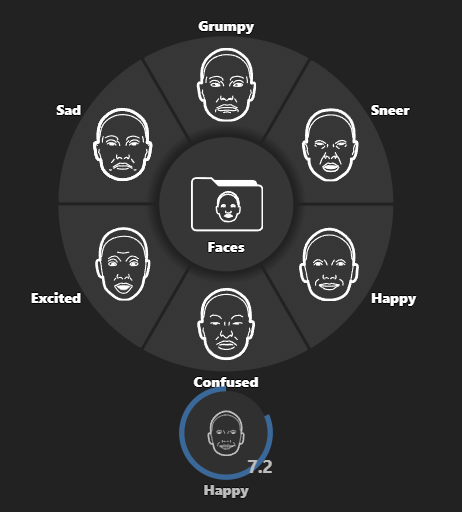
The wheel is one of the main tools for a telepresence operator. This holds a navigatable folder tree containing robot assets that can be played.
The assets included in the wheel can be customised, along with their icons/labels, in the robot's Assets page.
The currently playing asset will be displayed below the wheel with a countdown. Clicking this will stop the asset.
¶ Hotbar
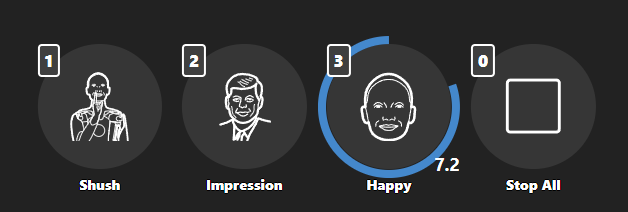
Assets from the wheel can be dragged to the Hotbar at the bottom of the screen for quick access.
Stop All will stop all assets currently playing on the robot.
¶ Settings
¶ Audio
¶ Robot Voice Output
The remote operators voice can be fed directly to the robots speaker, or it can be modified by intermediate software to change the voice sound, real time voice cloning is now possible — please contact us for details.
¶ Operator Voice Capture
The remote operators voice is captured, and fed to the robots speaker, it is strongly recommended the the remote operator uses a high quality headset with an integrated boom microphone, like Sennheiser's Game Zero and Game One.
¶ Robot Audio Capture
There are a number of options for capturing the sound on the robot side:
- Robot ear mounted microphones can provide an immersive binaural experience for the operator, making it possible to identify the location of sound sources at the robot side.
- The integrated beam forming microphone can help with echo cancellation and reduce background noise levels.
¶ Video
Here you can choose how the video feed is displayed. Native, Fit Full.
¶ Wheel
Lets you display a second wheel and whether either wheel auto resets when playing an asset.
¶ Autonomous Behaviour
Engineered Arts robots feature built in autonomous behaviours that provide human like movements and reactions to stimuli, examples include blinking and looking at human faces nearby. In Telepresence mode these behaviours include some additional functionality:
- Gesturing while talking
- Appropriate motion while listening
The remote user can select a person in the robots camera view that the robot should pay attention to by clicking on that person in the Telepresence UI