¶ Which robot do you have?
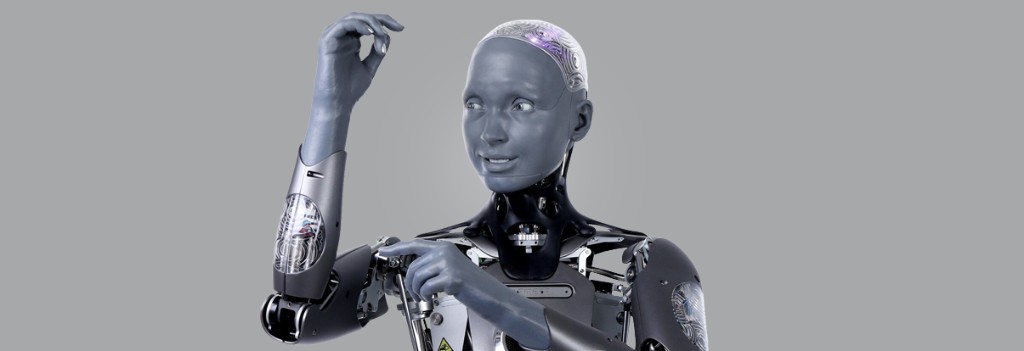
Mesmer robots are Full Size or Desktop, in Gen 2 or Gen 3 (desktop only), with model names Ameca, Ami, or Azi. Open the tab that matches your robot, then follow that installation manual before the steps below.
Follow the safety, installation, and powering-on instructions in the manual for your generation before continuing below.
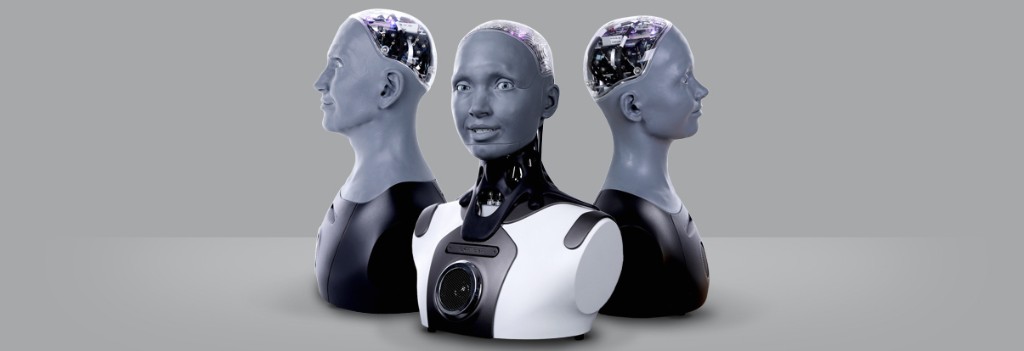
Models: Ameca Desktop, Ami Desktop, Azi Desktop
Installation manual: Mesmer Desktop Gen 2 — installation and safety
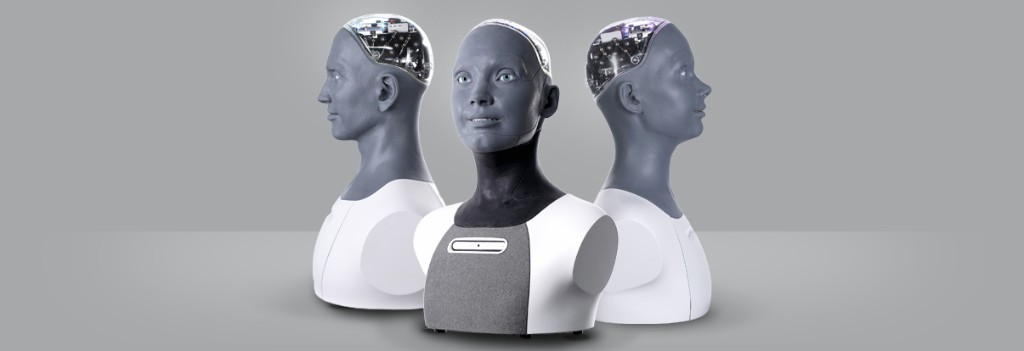
Models: Ameca Desktop, Ami Desktop, Azi Desktop
Installation manual: Mesmer Desktop Gen 3 — installation and safety
¶ Connect your robot
Power on your robot and connect it to the internet. See Robot connectivity for Ethernet and Wi‑Fi (Desktop Gen 3). If your site uses firewalls or corporate networking, share Network setup for IT with your IT team.
¶ Configure in Tritium UI
Log in to Tritium UI with your credentials.
It will open on the Robots tab where you can monitor and connect to your robot(s).
¶ Agents
Create and assign how your robot converses using the Agents Interface.
After your Agent is assigned, enable conversation on the robot: Interacting with your robot.
¶ Tritium AI subscription
If you have a Tritium AI subscription, see Tritium AI to manage tokens and set up conversational features.
¶ Learn more
- Understanding Tritium — platform overview
- Tritium UI guide — sections and tools in the web app
¶ Getting help
If your robot is not working as expected:
- Visit Troubleshooting & FAQ
- Report a problem on the robot
If this does not answer your question, please contact us.