Applies to: Mesmer Desktop Gen 3 (product code MD3) and the optional Docking Station (product code DS1). For Desktop Gen 2 and full-size robots, see External Audio Devices.
TODO — Content review: Support/engineering to document what the MD3 and DS1 3.5 mm jack supports (line in, line out, or both; levels; cable types; interaction with built-in speaker/mic; Tritium UI device names). Remove this banner when complete.
For day-to-day audio levels and device selection, use System > Audio. For general audio configuration, see Audio.
¶ Built-in audio (default)
The Mesmer Desktop Gen 3 robot includes an integrated beamforming microphone and 20W chest speaker for two-way interaction. This is the default setup for most installations.
Configure levels and routing in System > Audio — see Audio.
¶ Hardware — 3.5 mm connector
Product specifications list a 3.5 mm Audio in/out connector on:
- the robot rear panel (see Mesmer Desktop Specifications)
- the docking station when used (see Docking Station Specifications)
When the robot is installed on the docking station, the rear panel cover blocks access to the robot’s rear panel; cable connections are made at the dock instead — see the Docking Station user manual.
¶ Robot rear panel
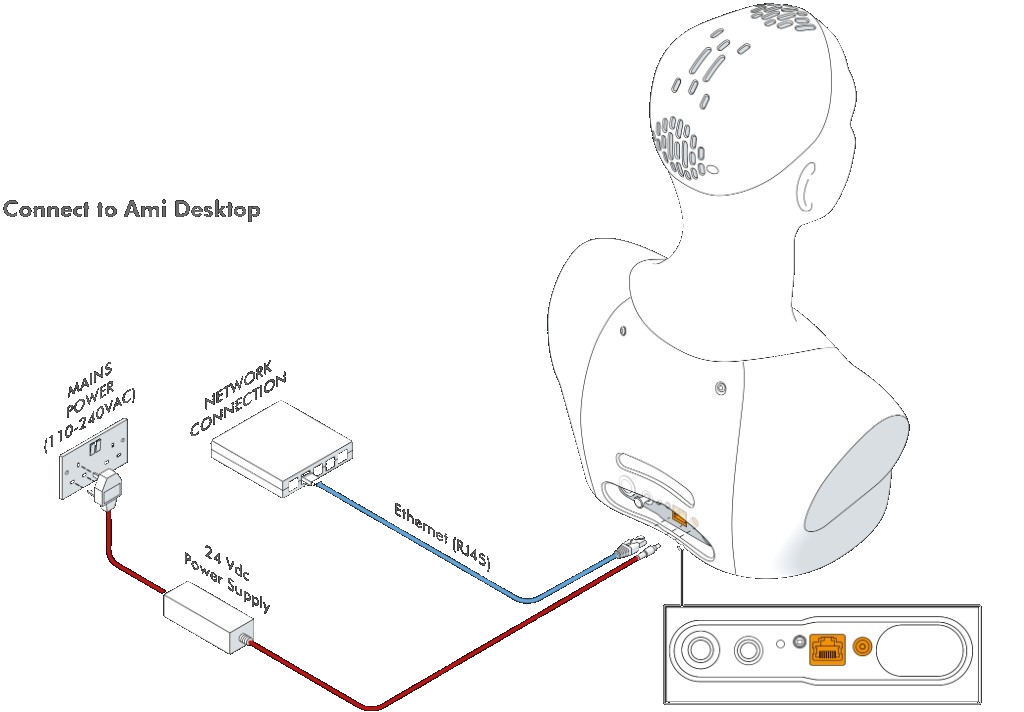
TODO — Content review: Document when to use the jack on the robot vs built-in audio; physical port identification on the rear panel diagram above.
¶ Docking station
The docking station install steps include an optional 3.5 mm Audio in/out cable (step 3 in Cable Connections). USB-C on the dock is for service only, not customer audio.
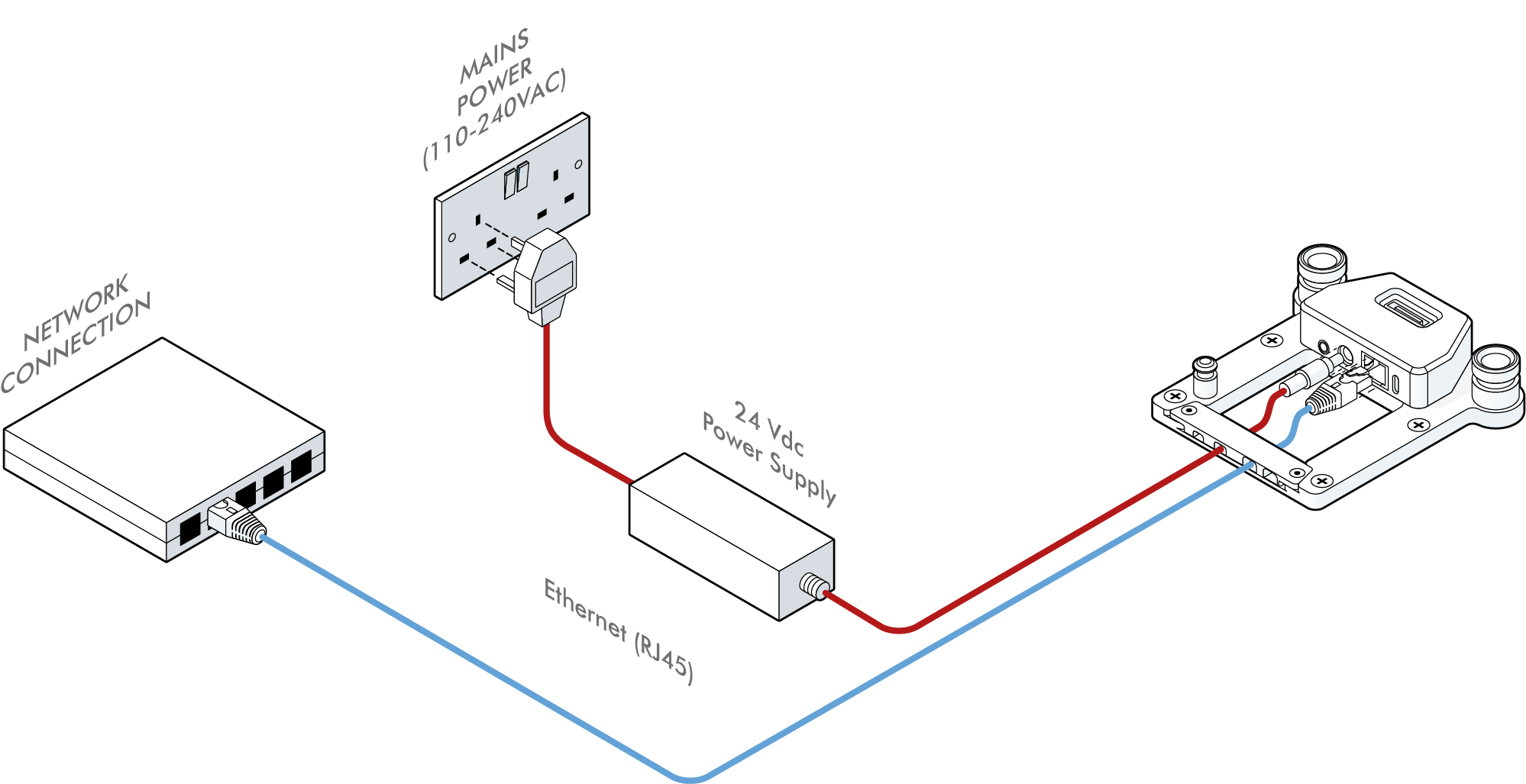
TODO — Content review: Document when external audio must route via the dock; step-by-step cable connection; confirm USB-C is service-only for customers.
¶ 3.5 mm jack — what it can do
TODO — Content review: Document supported modes (line out, line in, or combined); safe cable and plug types; what happens to the built-in speaker and chest mic when the jack is connected.
¶ Tritium UI setup
TODO — Content review: Document device and stream names in System > Audio for jack input and output; note any required scripts.
¶ Installation examples
TODO — Content review: Add typical exhibit setups (for example PA amplifier, external microphone) once hardware behaviour is confirmed.
¶ USB external devices
This page covers the 3.5 mm jack on MD3 and DS1 only. For USB microphones, audio interfaces, and related setup on desktop and full-size robots, see External Audio Devices.
For script setup and PulseAudio troubleshooting, see External audio setup (developer).